
Introduction
As a continuation of HTML Basics for Beginners – Part 2, this section delves into text markup and list elements. These tools allow you to highlight important content and organize information effectively. Let’s move forward and refine your HTML skills! Let’s dive in!
Text Markup in HTML
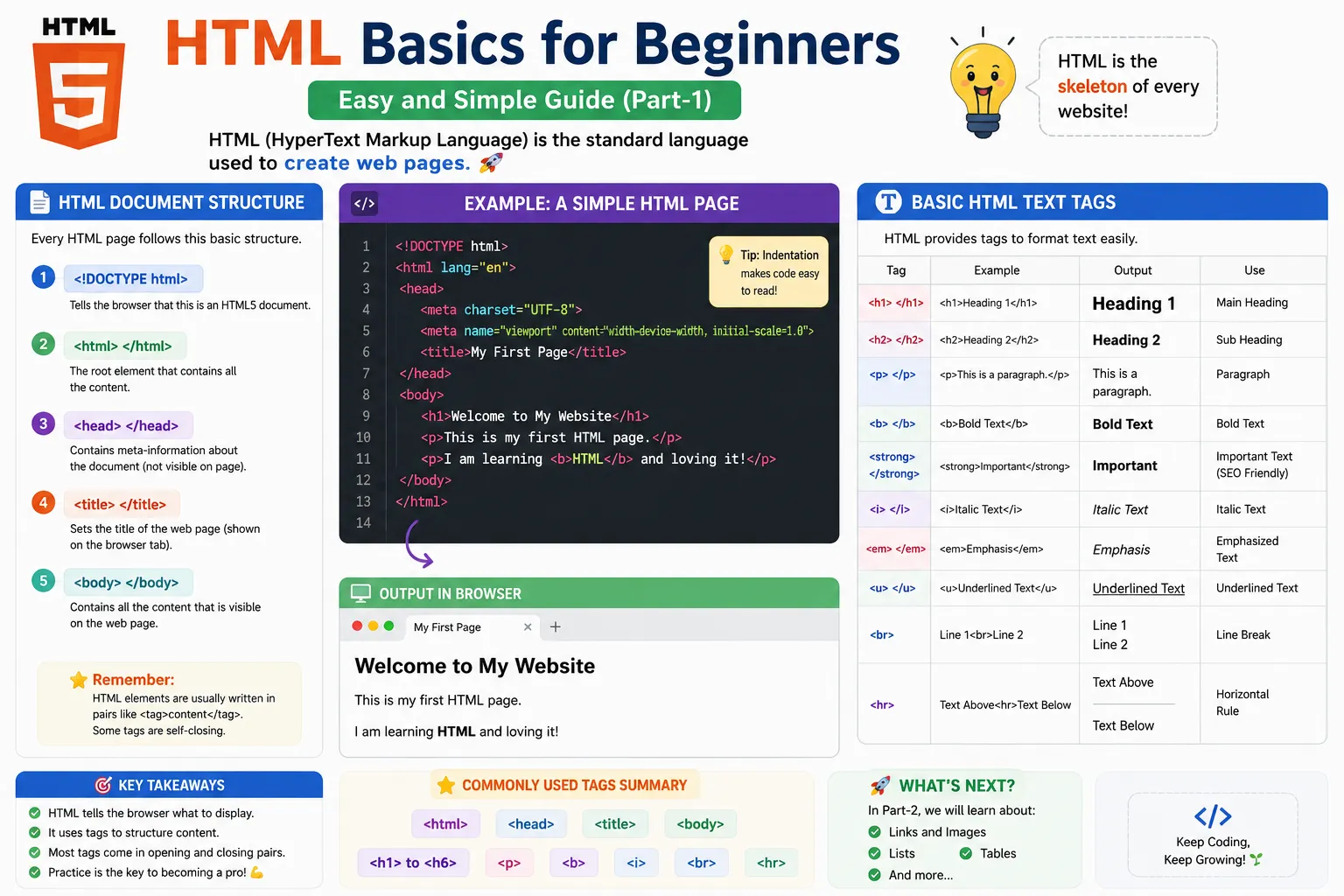
Text markup tags help format and present text in a meaningful way. Let’s break down these tags with easy-to-understand explanations and real-life examples.
1. <strong> – Bold & Important Text
Makes text bold and conveys importance.
📝 Think of it like: Highlighting an important word in bold in a document.
Example:
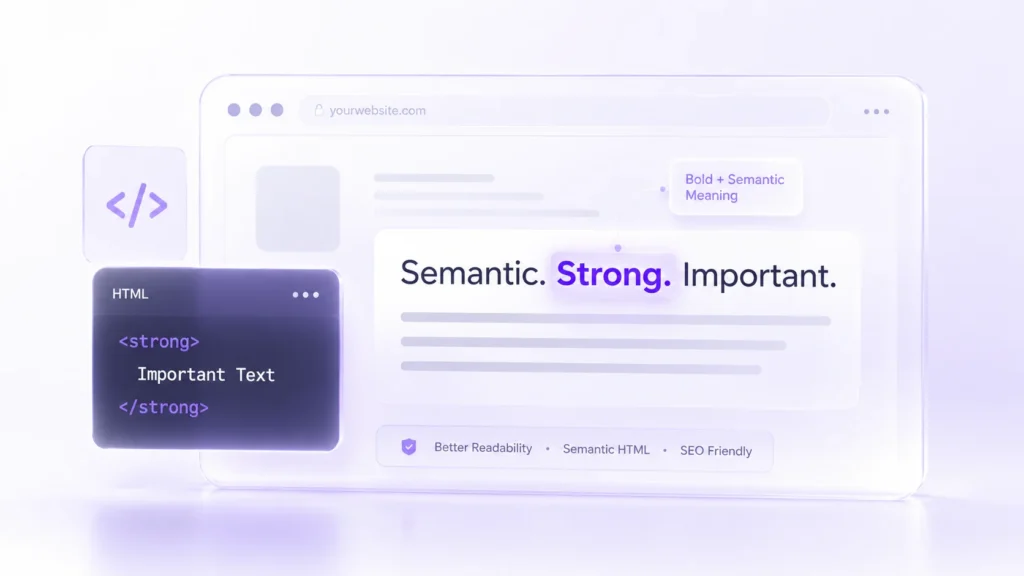
Tip: Search engines recognize <strong> text as important!
2. <em> – Emphasized (Italic) Text
Italicizes text and adds emphasis.
📝 Think of it like: Speaking with stress on a word for better understanding.
Example:
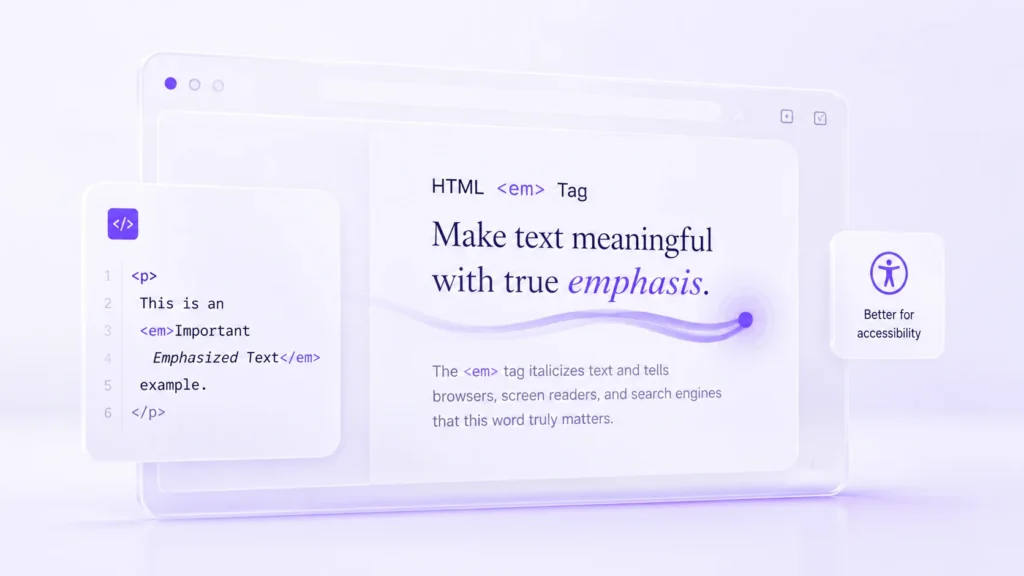
Tip: Helps visually and for screen readers.
3. ■ – Black Square Symbol
Used to display a black square.
📝 Think of it like: A bullet point in lists.
Example:
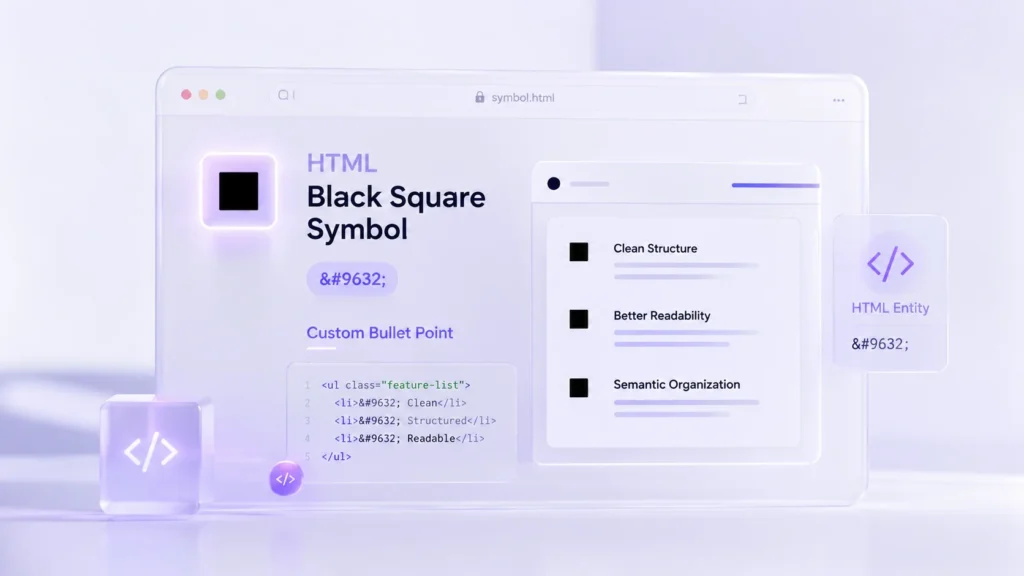
Tip: Useful for creating custom bullet points.
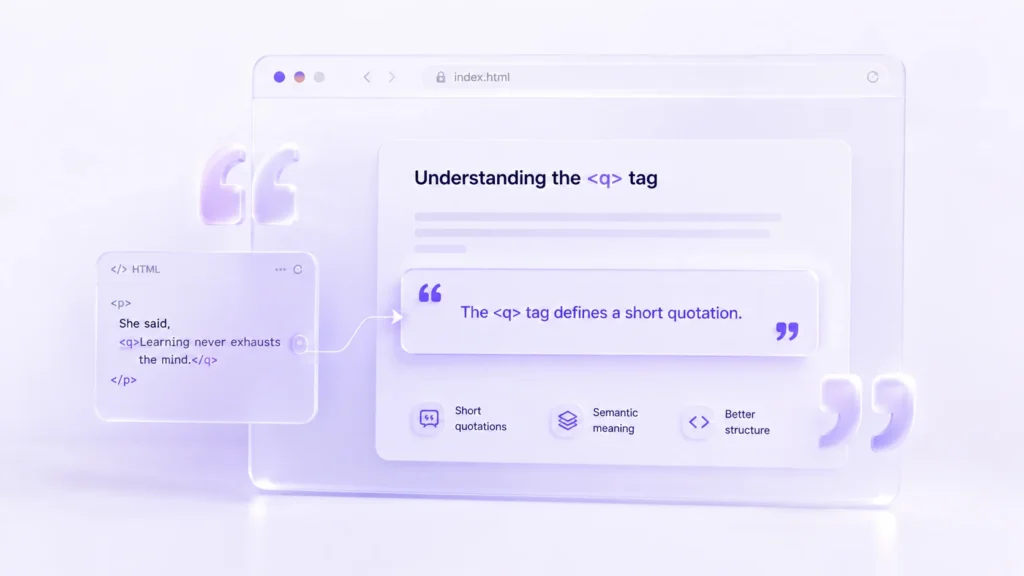
4. <q> – Short Quotations
Defines a short quote with quotation marks.
📝 Think of it like: Using quotes in a conversation.
Example:
5. <abbr> – Abbreviation
Defines abbreviations with a tooltip showing the full form.
📝 Think of it like: Hovering over “NASA” to see “National Aeronautics and Space Administration.”
Example:
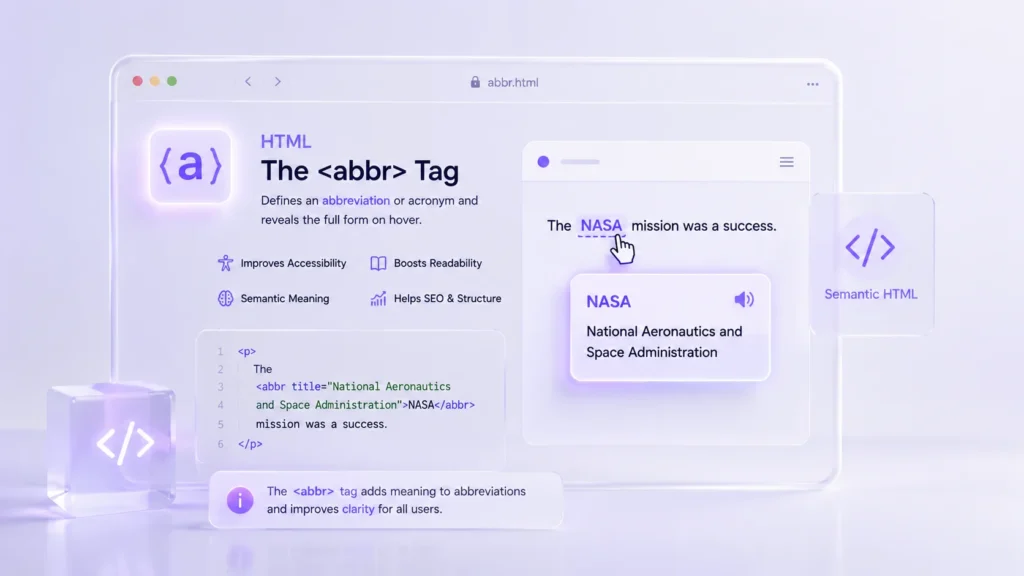
Tip: Good for accessibility and SEO.
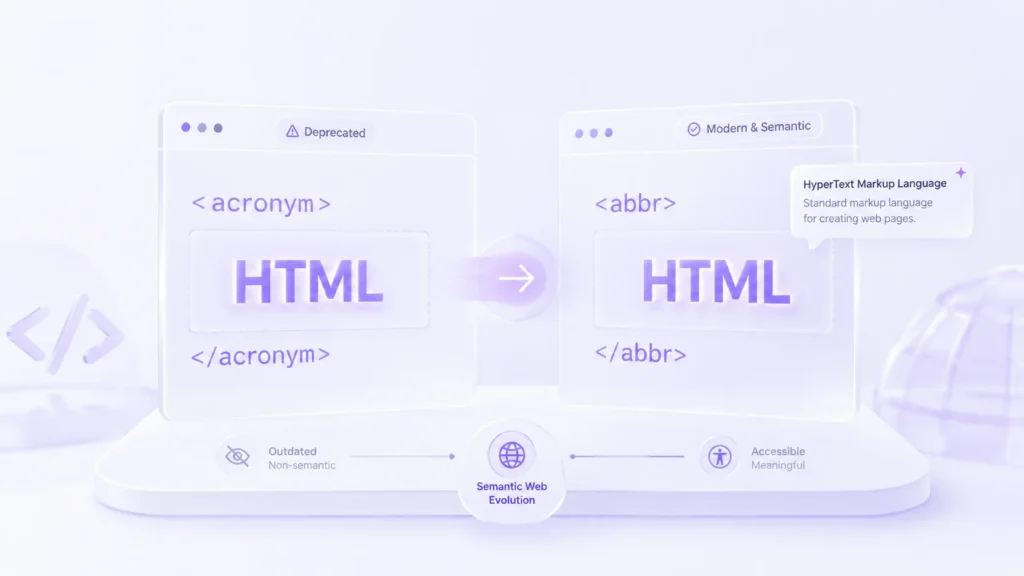
6. <acronym> – Acronyms (Deprecated, use <abbr> instead)
Same as <abbr>, but not widely supported anymore.
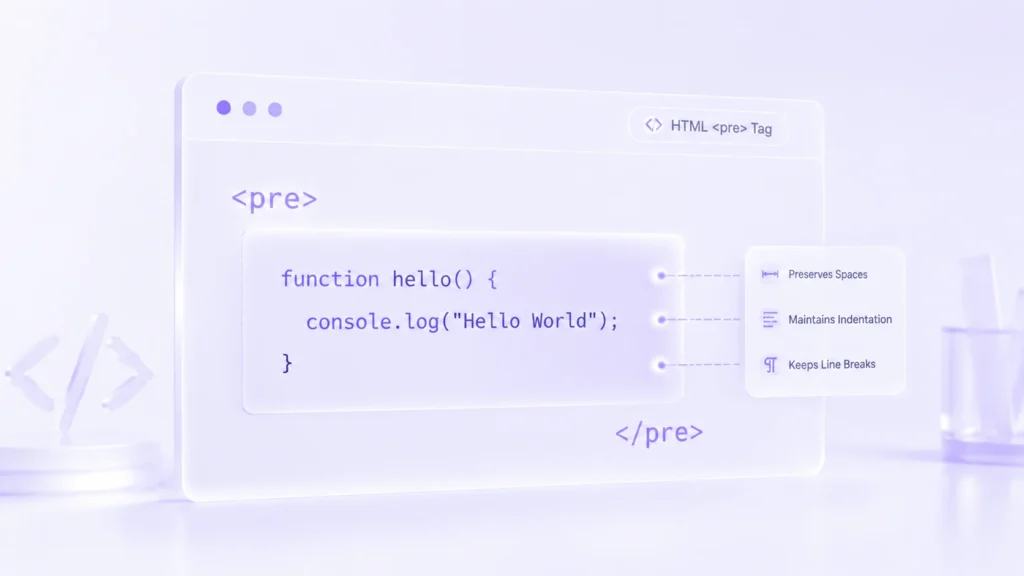
7. <pre> – Preformatted Text
Displays text exactly as written, including spaces and line breaks.
📝 Think of it like: Displaying code or poems with preserved formatting.
Example:
Tip: Great for code blocks or ASCII art.
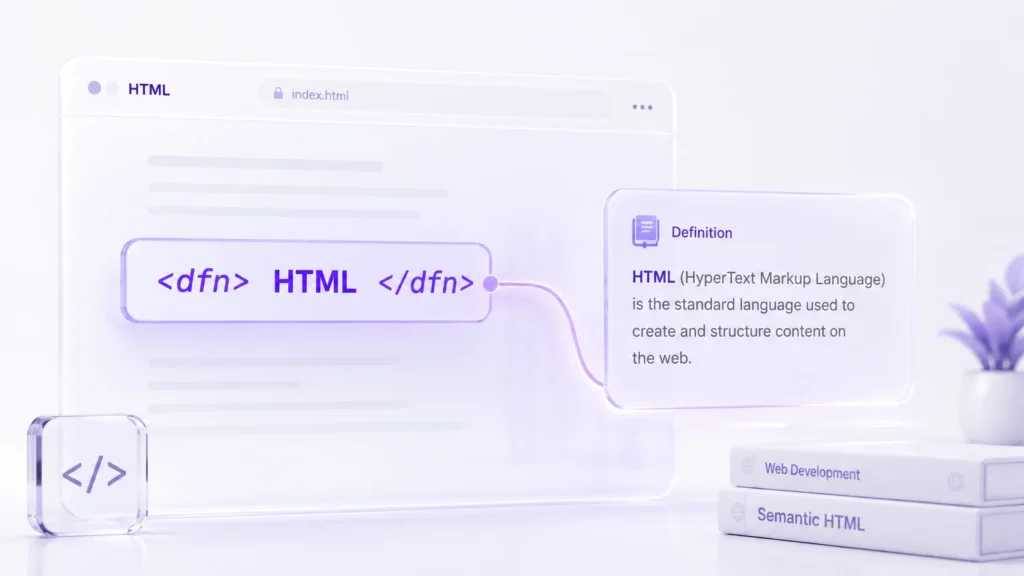
8. <dfn> – Definition Term
Defines a word being explained.
📝 Think of it like: Highlighting a term in a dictionary.
Example:
Tip: Helps improve readability and SEO.
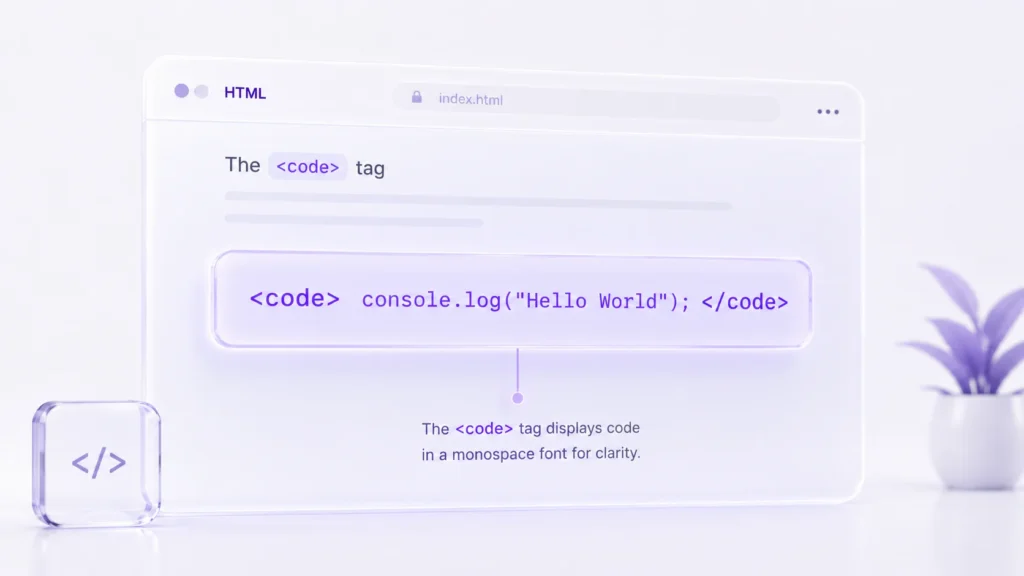
9. <code> – Code Formatting
Displays programming code in a monospace font.
📝 Think of it like: Showing code snippets in tutorials.
Example:
Tip: Use with <pre> for better formatting.
10. <cite> – Citation for Works
Defines the title of a work (e.g., books, movies, websites).
📝 Think of it like: Italicizing book/movie titles in an essay.
Example:
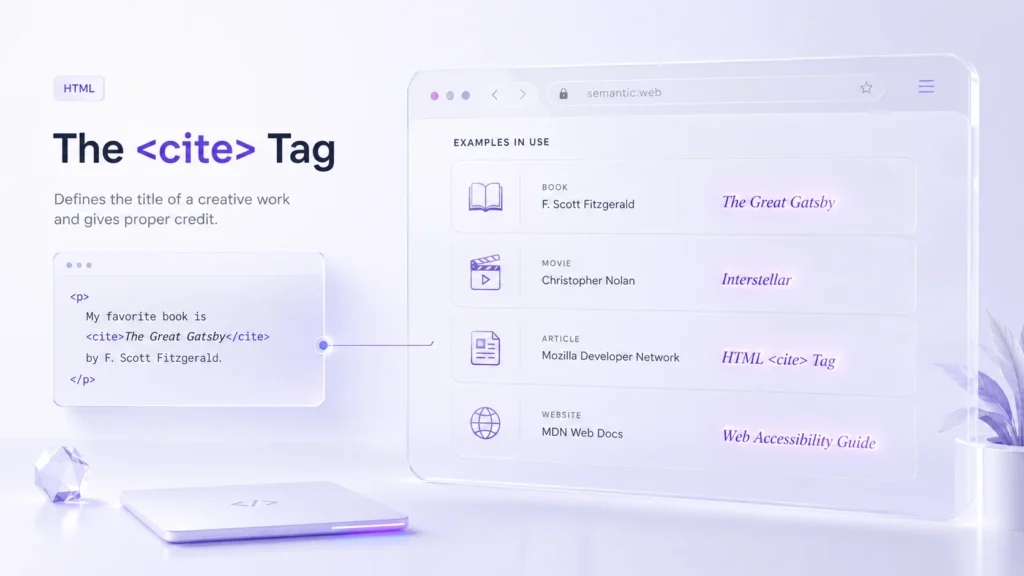
Tip: Used for references and citations.
11. <del> – Deleted Text
Strikes through removed text.
📝 Think of it like: Crossing out words in an edited document.
Example:
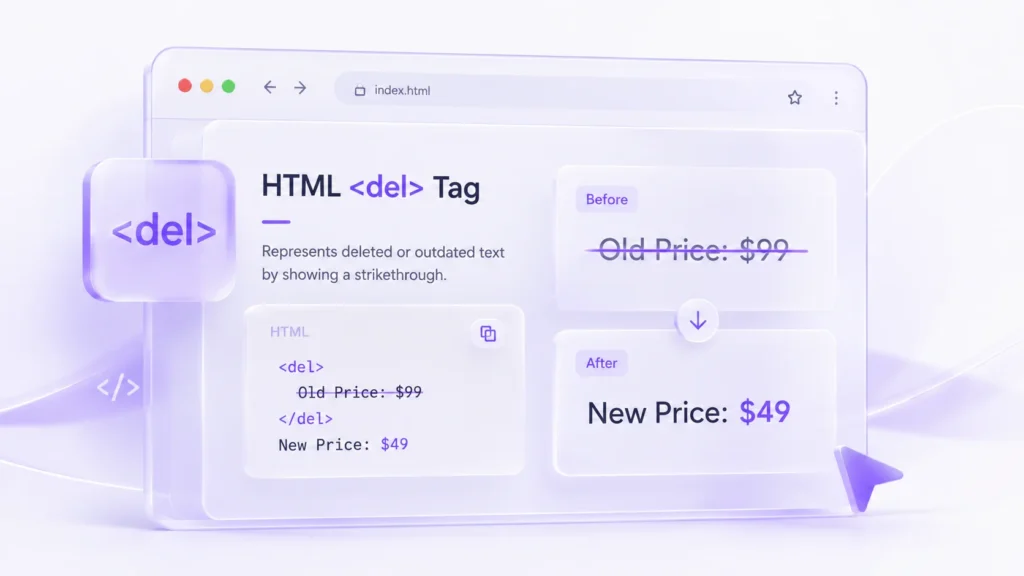
Tip: Good for price updates and edits.
12. <ins> – Inserted Text
Underlines newly added text.
📝 Think of it like: Highlighting new edits in a document.
Example:
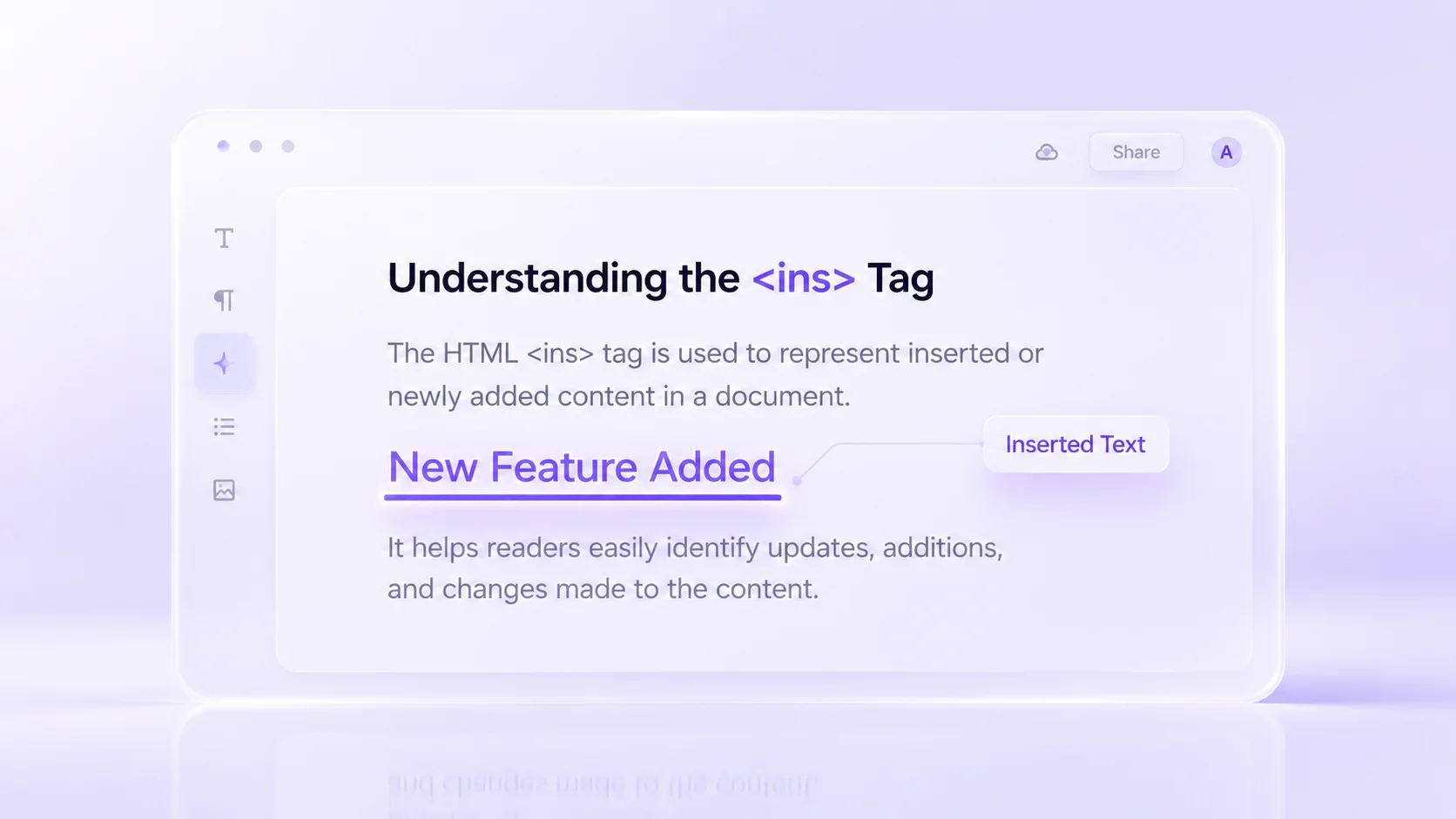
Tip: Shows important additions.
13. <sub> – Subscript Text
Displays text below the normal line.
📝 Think of it like: Writing chemical formulas.
Example:

Tip: Used in math/science content.
14. <sup> – Superscript Text
Displays text above the normal line.
📝 Think of it like: Writing exponents in math.
Example:

Tip: Used for footnotes and formulas.
15. <bdo> – Bi-Directional Override
Changes the text direction (left-to-right or right-to-left).
📝 Think of it like: Writing in Arabic/Hebrew (right-to-left).
Example:
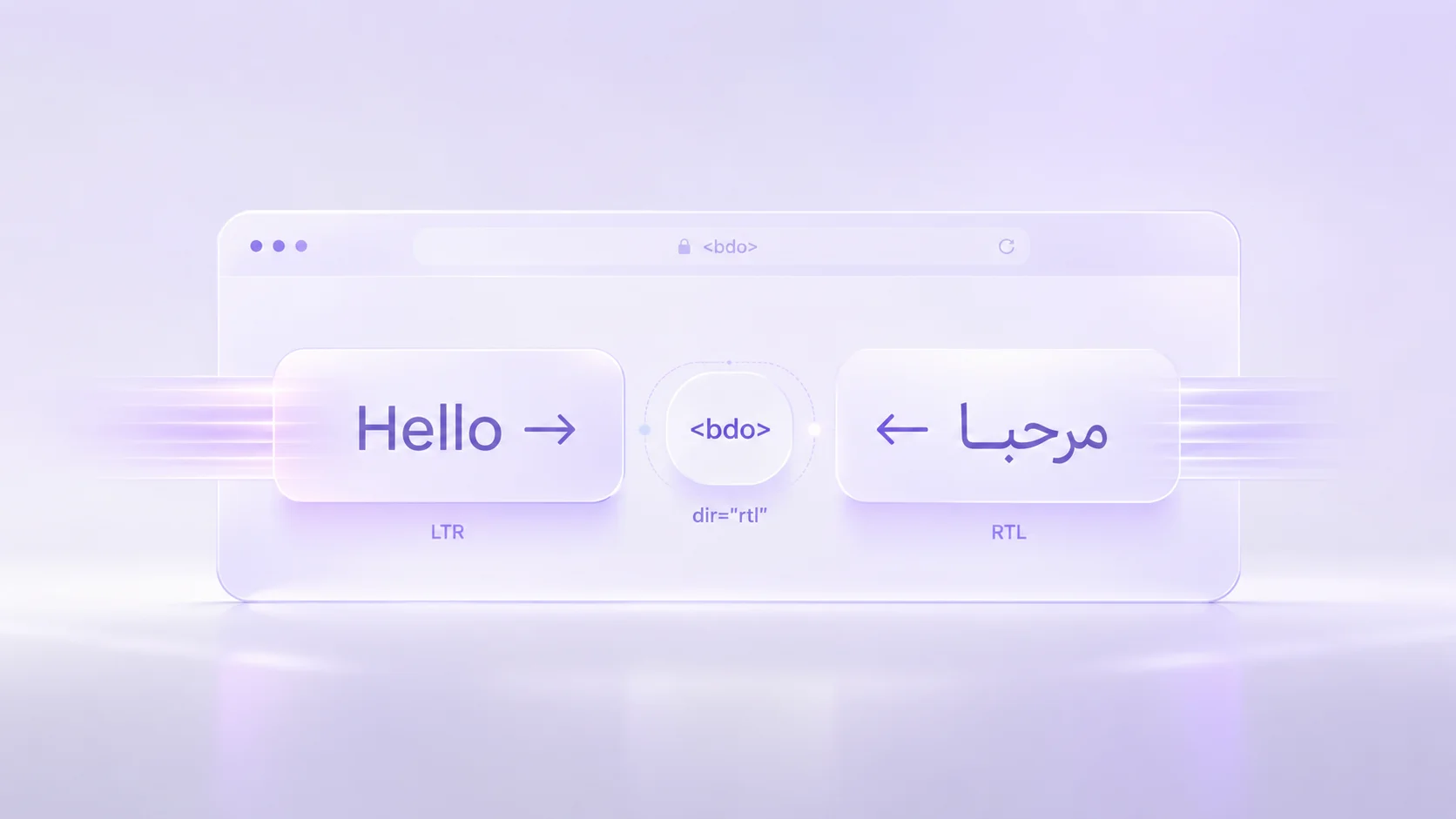
Tip: Useful for multilingual content.
16. <address> – Contact Information
Defines the contact details of an author or organization.
📝 Think of it like: A business card with address details.
Example:

Tip: Often displayed in italics for distinction.
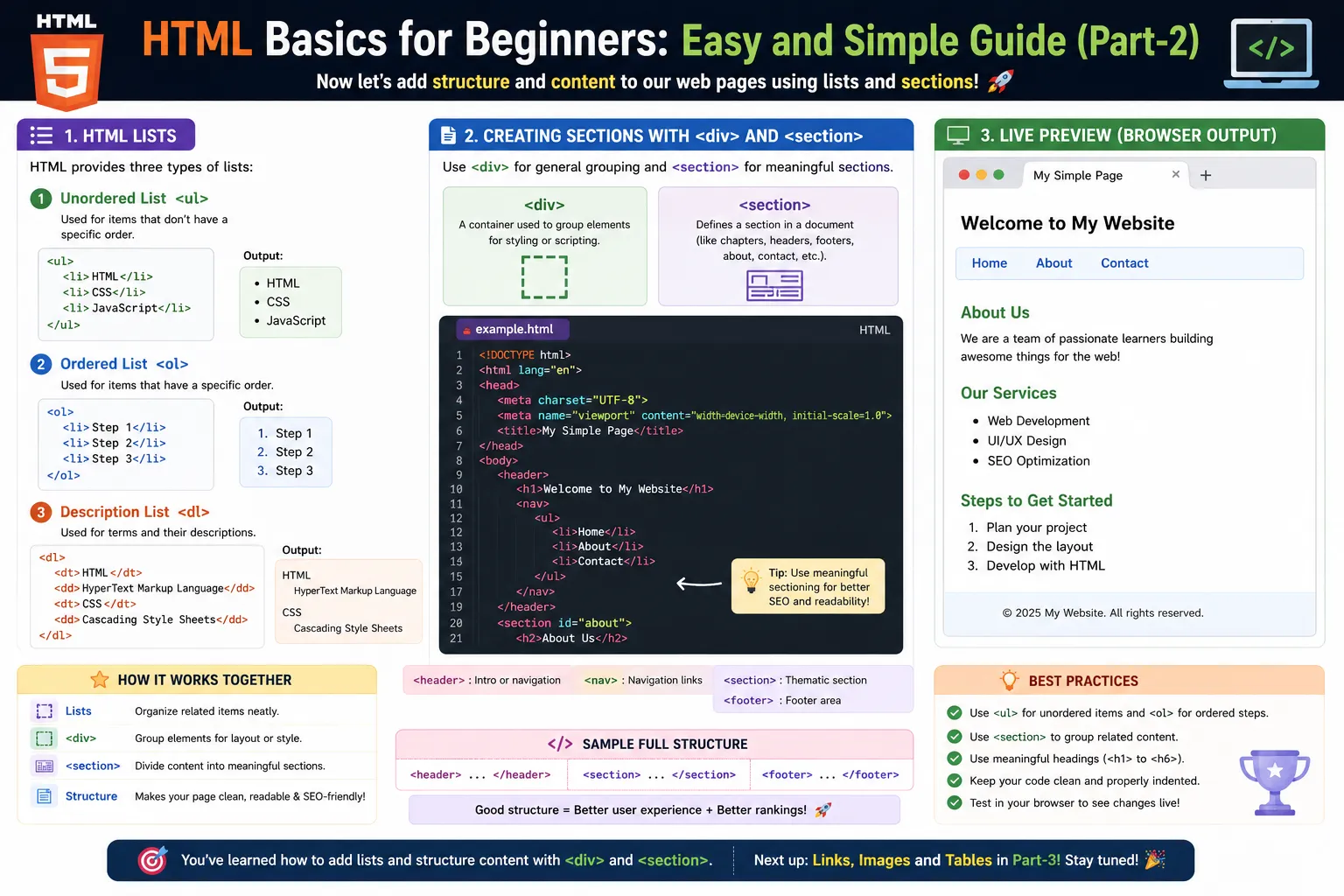
HTML Lists Explained Simply
Lists in HTML help organize content in a structured way. They are like grocery lists, menus, or steps in a recipe. There are three main types of lists in HTML:
1. Ordered List (<ol>) – Numbered List
Displays items in a specific order with numbers or letters.
📝 Think of it like: A step-by-step recipe or a to-do list.
Example:
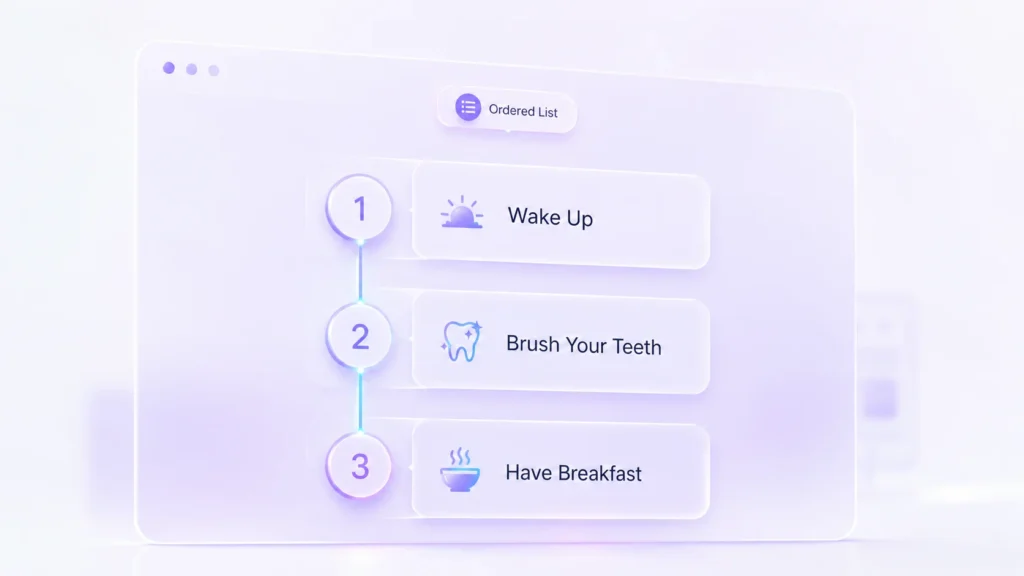
🔹 Output:
- Wake up
- Brush your teeth
- Have breakfast
Tip: Use <ol type=”A”> for A, B, C instead of numbers.
2. Unordered List (<ul>) – Bullet Point List
Displays items with bullets instead of numbers.
📝 Think of it like: A grocery list or menu.
Example:

- Apples
- Bananas
- Oranges
Tip: You can change bullet styles using CSS (disc, circle, square).
3. Definition List (<dl>) – Term & Description
Used for glossaries or FAQs, where terms and their meanings are listed.
📝 Think of it like: A dictionary or FAQ section.
Example:
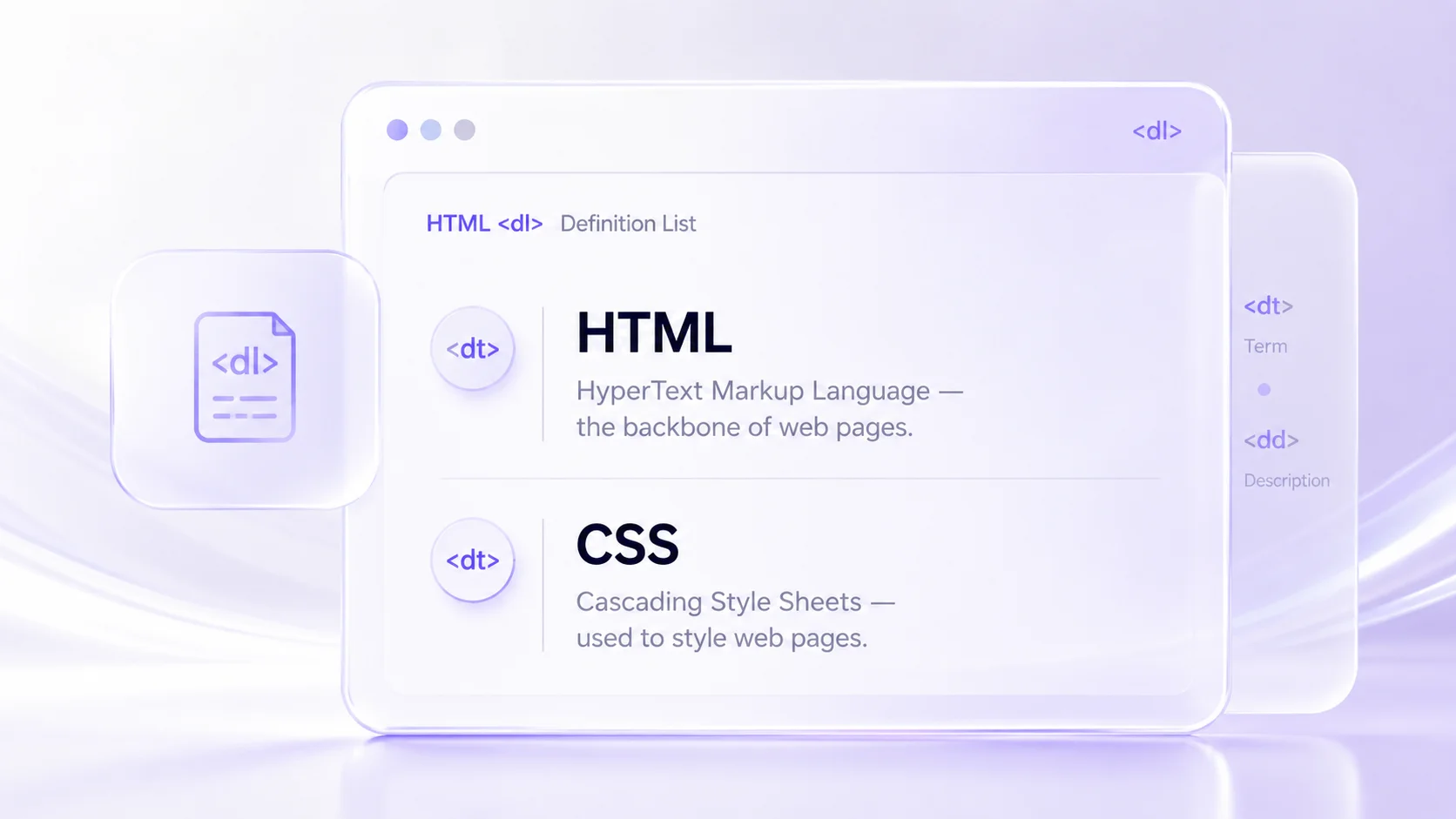
🔹 Output:
HTML
HyperText Markup Language – the backbone of web pages.
CSS
Cascading Style Sheets – used to style web pages.
Tip: <dt> defines the term, and <dd> defines the description.
4. <li> – List Item
- Used inside <ol> (ordered list) or <ul> (unordered list).
- Represents each item in a list.
📝 Think of it like: Items in a shopping list or steps in a recipe.
Example – Using <li> inside <ul> (Unordered List)
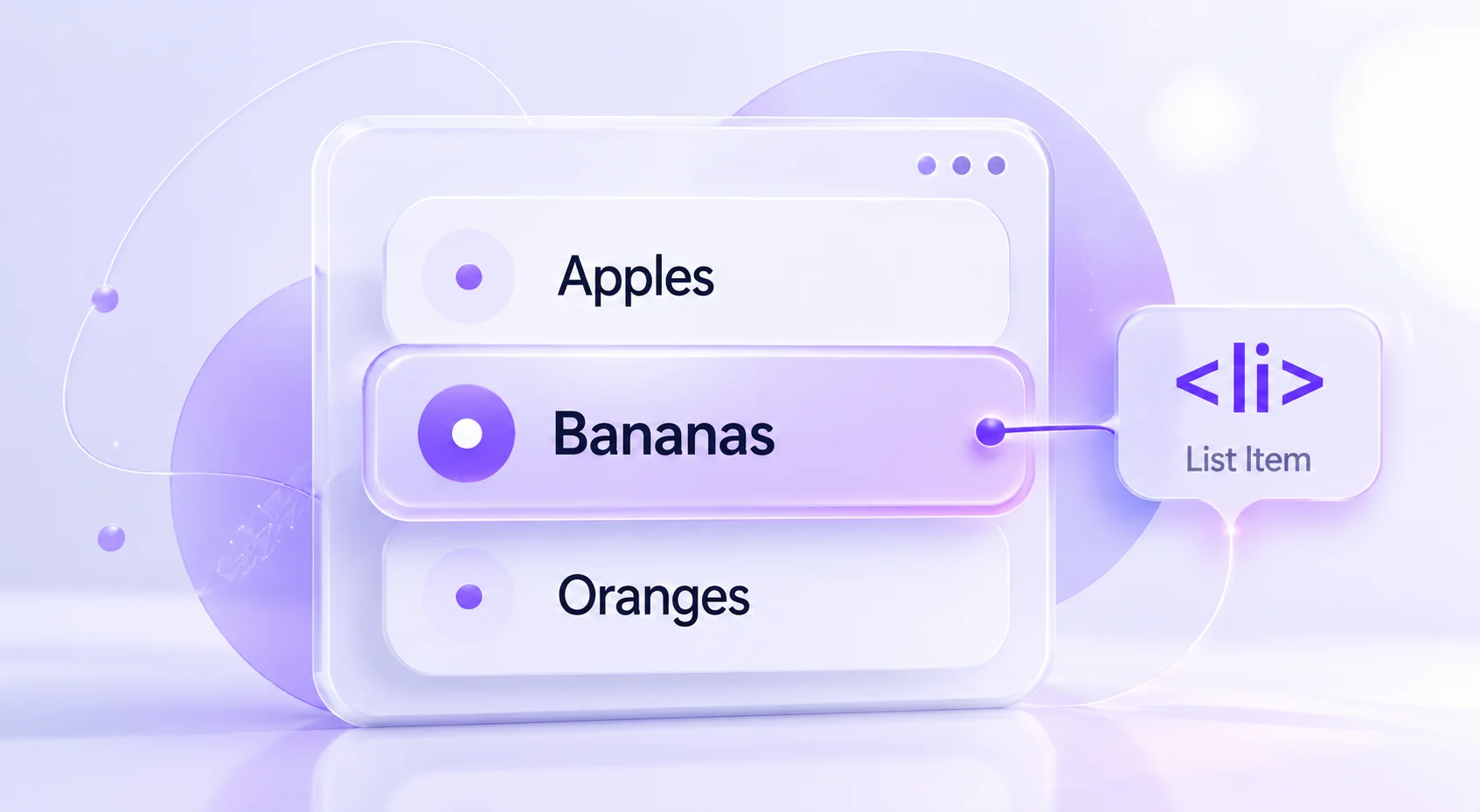
🔹 Output:
- Apples
- Bananas
- Oranges
Tip: <li> is always placed inside <ul> or <ol>.
5. <dt> – Definition Term
- Used inside a Definition List (<dl>).
- Represents the term being defined.
Think of it like: A word in a dictionary or a question in FAQs.
6. <dd> – Definition Description
- Used inside <dl>
- Represents the explanation or meaning of the <dt> term.
Think of it like: The meaning of a word in a dictionary or the answer to a question.
Example – Using <dt> and <dd> inside <dl> (Definition List)
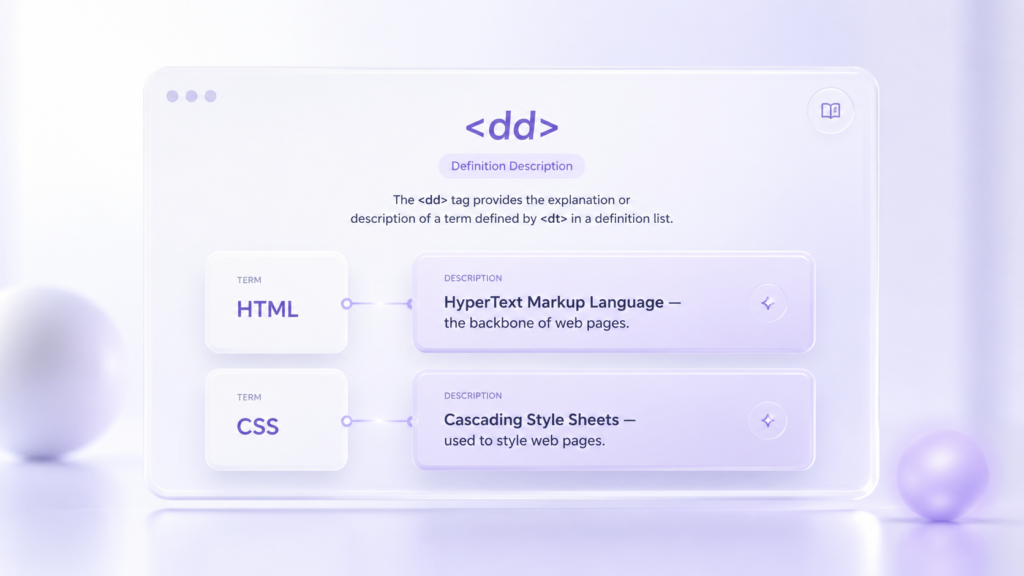
🔹 Output:
HTML
HyperText Markup Language – the backbone of web pages.
CSS
Cascading Style Sheets – used to style web pages.
📌 Tip:
- <dt> = The term or title.
- <dd> = The explanation or description.
Conclusion
With a solid understanding of text markup and list elements, you’re now equipped to structure content effectively and create well-formatted web pages. Keep practicing, experiment with different